Test My Devices runs diagnostics for keyboard, mouse, monitor, gamepad, headset, and webcam directly in your browser on both Windows and macOS. No downloads. No logins.
Covers hundreds of models from Razer, Apple, Logitech, ASUS, Dell, SteelSeries, HyperX, Corsair, Sony, Microsoft, and more, with results you can trust before you return, replace, or blame the software.
Detect dead keys, stuck keys, ghosting, and rollover issues. The visual layout confirms that every switch registers correctly. Works with mechanical, membrane, wireless, and laptop keyboards.
Launch TesterCheck every button, including MB4/MB5, test scroll wheel behavior, and spot double-click faults before they ruin your next session.
Launch TesterRun dead pixel, stuck pixel, backlight uniformity, and color accuracy checks. Covers 4K, OLED, and high-refresh-rate panels.
Launch TesterTest analog stick drift, button mapping, trigger response, and deadzone calibration. Compatible with PS5 DualSense, Xbox Series X, Nintendo Switch Pro, and PC controllers via USB or Bluetooth.
Launch TesterCheck the microphone input, speaker balance, and audio channel isolation. Distinguish driver issues from hardware faults.
Launch TesterConfirm video feed, resolution output, frame rate, and focus behavior. Useful before calls, content creation sessions, or warranty claims.
Launch TesterTest My Devices runs on Windows 10, Windows 11, and macOS without requiring any platform-specific software, drivers, or extensions. Whether you're on a MacBook Pro testing a wired keyboard or on a Windows desktop diagnosing a wireless gaming mouse, the browser handles hardware communication directly through standard Web APIs.
Test My Devices works fully on Windows 10 and 11 using Chrome, Edge, or Firefox. It supports keyboards, mice, webcams, microphones, and controllers, including wired and wireless devices. If Windows detects your device, Test My Devices can test it.
Test My Devices works smoothly on macOS using Safari, Chrome, and Firefox. All standard peripherals like Magic Keyboard, Magic Mouse, webcams, and microphones function normally through the browser with full input detection.
Three Steps. No Software. Honest Results.
Plug in your device via USB, connect via Bluetooth, or pair your 2.4GHz wireless receiver. Most peripherals are ready immediately. No driver installation needed for browser-based testing.
Select the peripheral category that matches your device. Each test page loads a model-specific layout or interactive diagnostic surface, depending on the peripheral type.
Visual indicators flag exactly which key, button, pixel zone, or axis is misbehaving.
Unresponsive keys, key chatter (double-typing from a single press), ghosting under simultaneous key presses, N-key rollover failures, and stuck modifier keys. If a switch stops registering before it physically fails, it shows here first.
Double-click faults from degraded switch contacts, missed clicks, scroll wheel skipping, polling irregularities, and unresponsive side buttons. Competitive and productivity users often discover switch wear before they notice it in-game.
Dead pixels (permanently off), stuck pixels (locked to a single color), backlight bleed, color uniformity drift, and response-time artifacts on high-refresh displays. Running a pixel test before a return window closes has saved users hundreds in shipping costs.
Analog stick drift caused by worn potentiometers, ghost inputs from dirty button contacts, asymmetric trigger response, and deadzone miscalibration. The browser Gamepad API reads raw axis values, so the drift that games compensate for still appears in the tester.
Left-right channel imbalance, microphone cutouts, frequency response gaps, and connection drops on wireless models. Audio channel isolation tests separate hardware faults from driver conflicts.
Black screen on startup, low frame rate output, autofocus failure, and incorrect resolution reporting. Browser-based webcam testing uses the MediaDevices API and confirms output independent of your video conferencing software.
Tips, guides, and practical troubleshooting advice for your everyday peripherals.
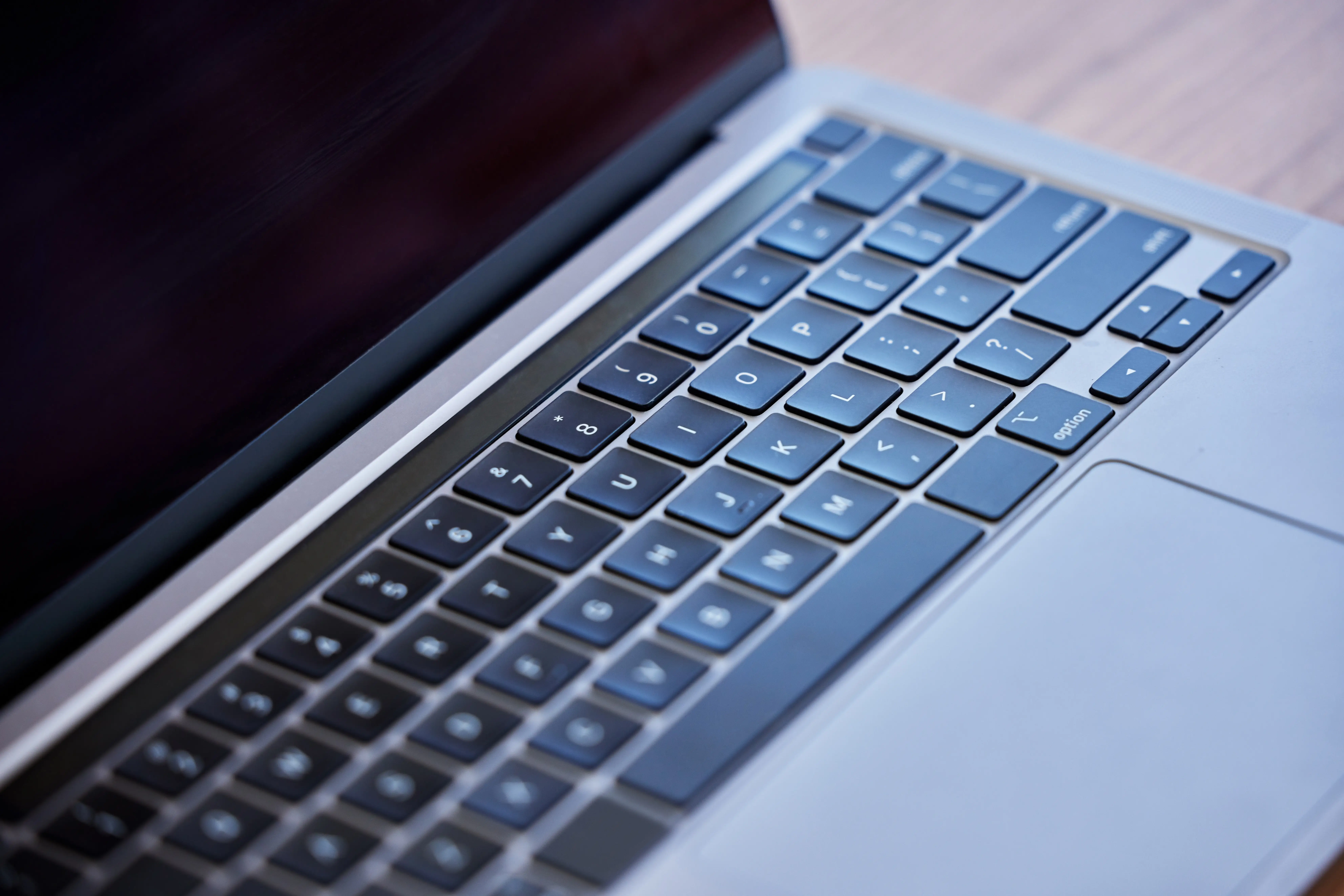
There are 3 primary biometric variations for an unresponsive MacBook Touch ID sensor: capacitive surface blockages, macOS security lockouts, …
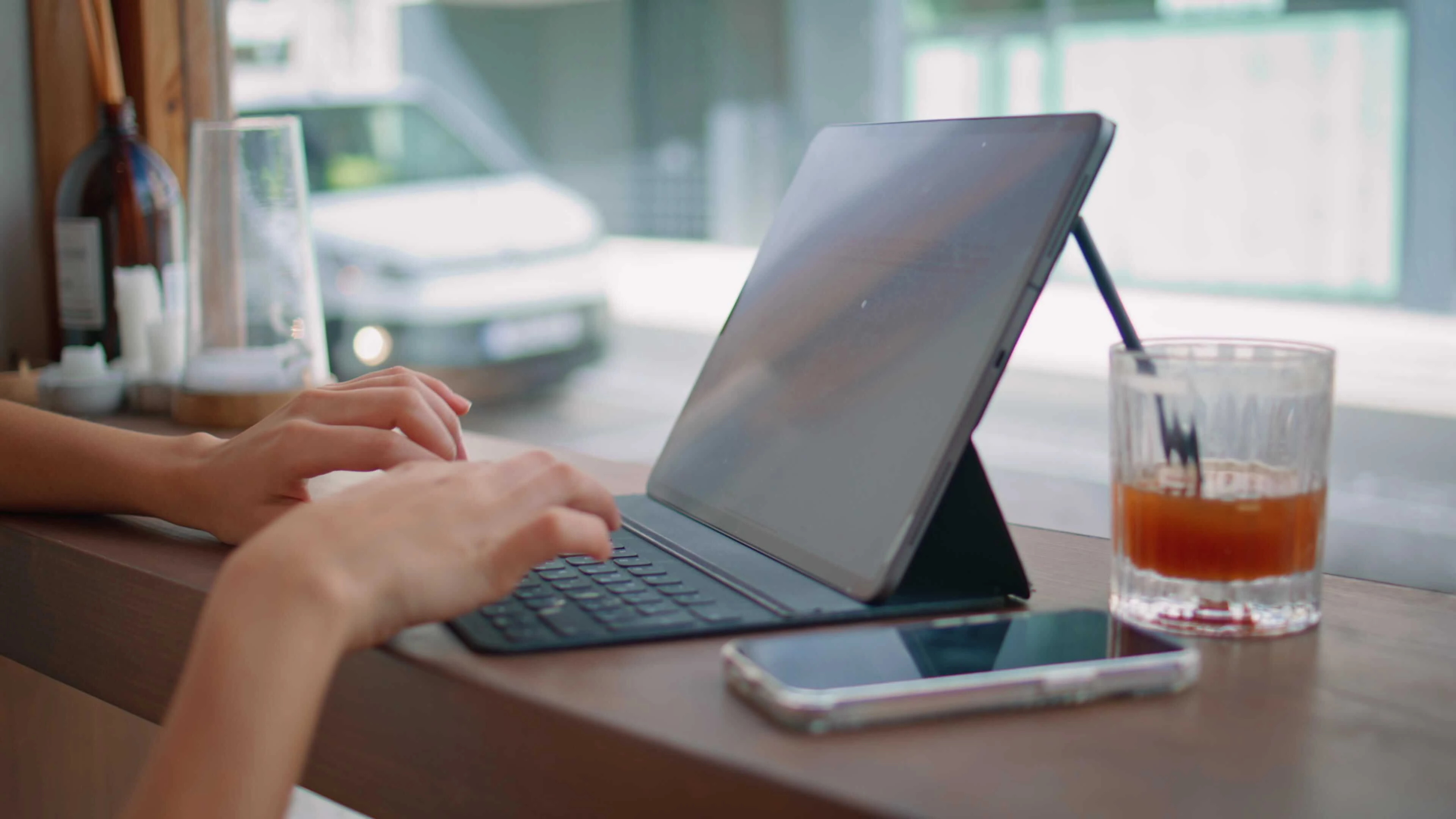
There are 2 primary failure modes for an unresponsive iPad keyboard: virtual software rendering glitches and physical hardware …

Phantom Blade Zero releases on October 29, 2026. Check the system requirements and test your gamepad, keyboard, and monitor before launch …
Everything you need to know about Test My Devices.
Yes. Test My Devices runs on Windows 10, Windows 11, and macOS in Chrome, Firefox, Edge, and Safari without any drivers, extensions, or software installs.
Test My Devices uses built-in browser features to detect your device directly. When you press a key, move your mouse, or turn on your webcam, your browser sends that input instantly to the tool. There’s no extra software or download involved, so you’re seeing real-time results from your actual device.
Test My Devices works with most keyboards, mice, webcams, microphones, and controllers. It doesn’t rely on manufacturer software like Razer Synapse, Logitech G HUB, or ASUS Armoury Crate. As long as your system detects the device, Test My Devices can read its input directly in the browser.
Yes. Test My Devices works with wireless devices like Bluetooth and 2.4GHz peripherals, as long as they’re already connected to your computer. Once connected, they function just like wired devices in the test.
Testing happens locally in your browser. Test My Devices does not need to record your keystrokes, mouse movements, or private device data.
Yes. You can open multiple Test My Devices tabs and test different devices at the same time, such as your keyboard, mouse, and webcam, without any issues.