An iPad keyboard not working traces to one of two root causes: a software fault in the built-in on-screen keyboard, or a hardware fault in an external keyboard. iPad supports two keyboard types for text input: the on-screen keyboard rendered by iPadOS, and hardware keyboards such as Apple’s Magic Keyboard and Smart Keyboard, along with third-party Bluetooth models from brands like Logitech and Zagg.
Each keyboard type fails through distinct mechanisms and requires a distinct repair path. Diagnostic steps below separate the on-screen and hardware branches, catalog the common causes behind each failure, then match an exact fix to every failure pattern.
Diagnose the Problem First: On-Screen vs. Hardware Keyboard
Diagnosing an iPad keyboard problem starts with separating on-screen keyboard failures from hardware keyboard failures, since each category demands a different troubleshooting path.
The on-screen keyboard functions as a software layer rendered directly on the iPad display by iPadOS. A hardware keyboard operates as a physical accessory, connected through Apple’s Smart Connector or through Bluetooth pairing. Identifying whether the fault is software or hardware determines which section of this guide resolves the problem fastest.
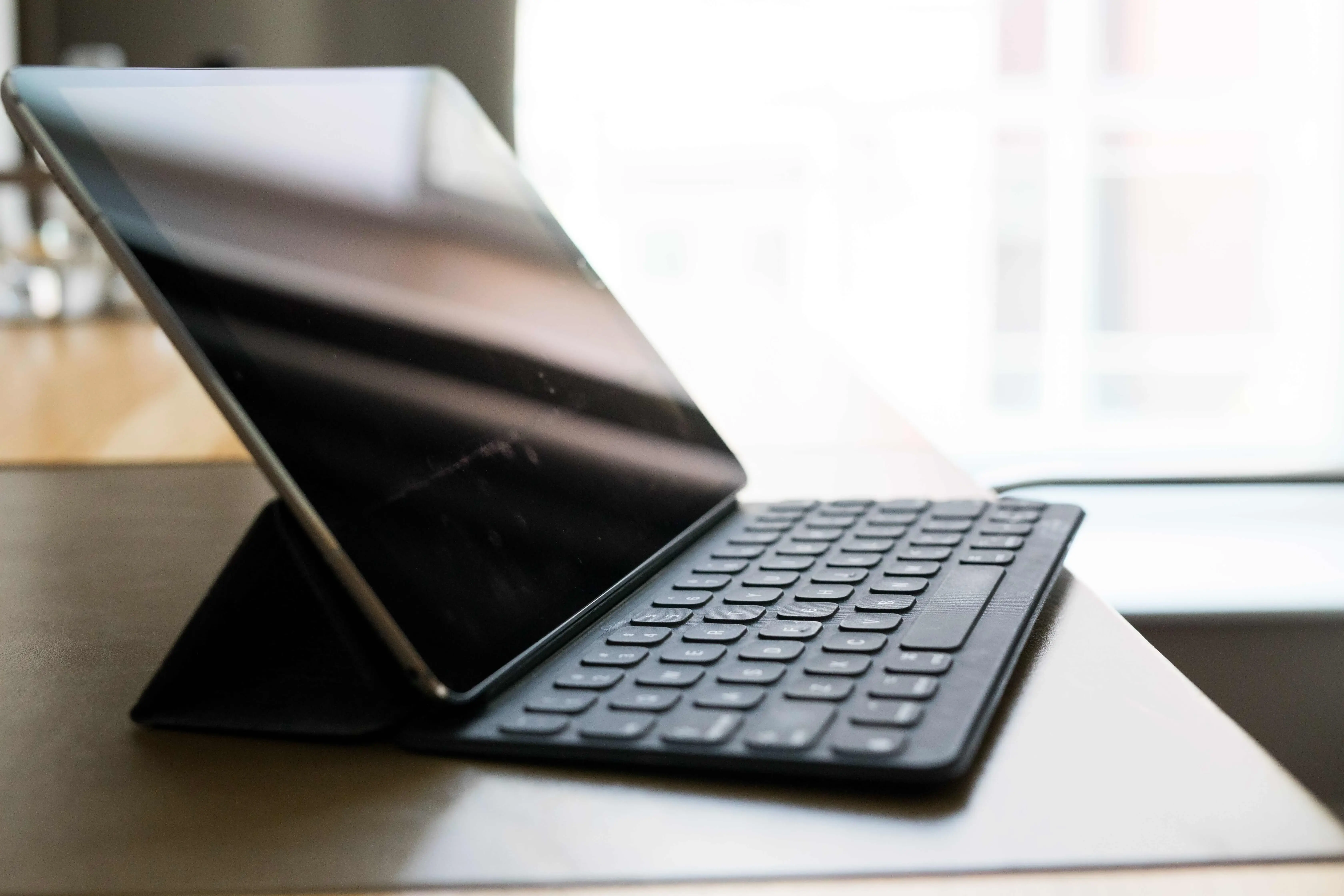
Image Credit: Apple / iPad Keyboard Diagnostics
Signs Your On-Screen Keyboard Is the Issue
The on-screen keyboard shows 4 primary failure signs:
- The keyboard does not appear when tapping a text field.
- The keyboard flashes and disappears within 1-2 seconds.
- The keyboard shows only part of its keys, in split or floating mode.
- Key presses register with a 1-2 second delay.
These 4 signs point to a software-level fault, not a hardware fault.
Signs Your Physical/Bluetooth Keyboard Is the Issue
A hardware keyboard shows 4 distinct failure signs:
- iPad displays “Not Connected” under Settings > Bluetooth for the keyboard.
- The keyboard’s status light stays off or blinks continuously.
- Key presses produce no character on screen despite a connected status.
- The keyboard disconnects repeatedly during a single session.
These 4 signs isolate the fault to the physical accessory or its connection method.
Why Is My iPad Keyboard Not Working? (Common Causes)
An iPad keyboard stops working for four primary causes: a software glitch in iPadOS, a Bluetooth or Smart Connector pairing failure, low battery on an external keyboard, or physical damage to keyboard contacts. Software glitches affect both the on-screen keyboard and hardware keyboards, since a frozen input process blocks typing regardless of source.
Pairing failures and low battery apply only to external keyboards. Magic Keyboard, Smart Keyboard, and third-party Bluetooth models like Logitech and Zagg. Physical damage covers everything from Smart Connector pin debris to worn key mechanisms. Each of these four causes maps to a specific fix in the sections below.
Software Glitches and iPadOS Bugs
A software glitch is a temporary fault in iPadOS that blocks the keyboard from rendering or responding. iPadOS manages the on-screen keyboard through a background process. This process crashes after extended use, after an app update, or after an incomplete iPadOS update. A crashed process produces a keyboard that fails to appear or that appears with delayed input. This cause affects both on-screen and hardware keyboards, since a frozen input process blocks all key input regardless of source.
Bluetooth or Smart Connector Pairing Issues
A pairing issue is a broken communication link between iPad and an external keyboard. Apple’s Magic Keyboard and Smart Keyboard connect through the Smart Connector, a 3-pin magnetic interface that requires no Bluetooth pairing. Third-party keyboards, including Logitech and Zagg models, connect through Bluetooth, which requires an active pairing profile stored on iPad. A pairing profile corrupts after an iPadOS update, after a keyboard firmware update, or after prolonged disuse. A corrupted profile produces a keyboard that appears connected in Settings but sends no input, or a keyboard that never completes the connection.
Low Battery on External Keyboards
Low battery is a power level insufficient to maintain a stable connection. Bluetooth keyboards, including Logitech and Zagg models, run on internal batteries that require periodic charging or replacement. A battery below 10% charge disconnects intermittently before it fails. Smart Connector keyboards, including Magic Keyboard and Smart Keyboard, draw power directly from iPad and carry no internal battery, which removes this cause for that category.
Physical Damage or Debris on Contacts
Physical damage is wear, moisture exposure, or debris that blocks an electrical connection. The Smart Connector uses 3 exposed metal pins on both iPad and keyboard. Dust, lint, or corrosion on these pins blocks the electrical signal between the two contacts. A Bluetooth keyboard’s physical damage instead centers on individual key mechanisms, hinges, or the battery compartment. This cause explains failures isolated to specific keys or to one keyboard while a second keyboard pairs normally.
How to Fix the On-Screen Keyboard Not Showing Up
Fix a missing on-screen keyboard with 3 steps: disconnect competing keyboards, check keyboard display settings, then restart the keyboard process.
Turn Off an Interfering External Keyboard
Disconnect any paired external keyboard if the on-screen keyboard fails to appear.
- Open Settings and select Bluetooth.
- Tap the connected keyboard’s name.
- Select Disconnect or Forget This Device.
- Tap a text field to confirm the on-screen keyboard now appears.
iPadOS suppresses the on-screen keyboard automatically whenever a hardware keyboard reports as connected. A stuck connection state produces this suppression even after the physical keyboard moves out of range.
Check the Split Keyboard and Floating Keyboard Settings
Reset the keyboard’s display mode if the keyboard appears in a reduced or floating state.
- Open Settings, select General, then Keyboard.
- Confirm Enable Split Keyboard toggles to the intended position.
- Pinch the on-screen keyboard closed, then pinch it open again to restore full size.
- Drag the keyboard from its bottom edge to dock it if it displays as a floating panel.
A floating or split keyboard results from a pinch gesture applied unintentionally during typing.
Restart the Keyboard App or Restart the iPad
Restart the iPad if disconnecting the hardware keyboard and adjusting display settings does not restore the on-screen keyboard.
- Press and hold the top button and either volume button.
- Drag the power slider to turn the iPad off.
- Wait 30 seconds.
- Press and hold the top button to turn the iPad on.
A restart clears the background process that renders the on-screen keyboard, and resolves the majority of software-level failures.
How to Fix a Magic Keyboard or Smart Keyboard Not Working
Fix a Magic Keyboard or Smart Keyboard with 3 targeted checks: responsiveness, connection status, and Smart Connector contact condition.

Image Credit: Apple / iPad Keyboard Diagnostics
Magic Keyboard Not Responding or Not Typing
A Magic Keyboard or Smart Keyboard that fails to type indicates a Smart Connector fault or a software-level input block.
- Detach the keyboard from iPad completely.
- Inspect the Smart Connector pins on both iPad and keyboard for visible debris.
- Reattach the keyboard and confirm firm magnetic alignment.
- Type a test character in a Notes app text field.
A Magic Keyboard draws power and data through the same 3-pin connector, so a single misaligned attachment blocks all input.
Magic Keyboard or Smart Keyboard Not Connecting
A Magic Keyboard or Smart Keyboard that shows no connection indicates a Smart Connector recognition failure, since neither accessory uses Bluetooth pairing.
- Remove any case or screen protector covering the Smart Connector.
- Reattach the iPad to the keyboard at a 90-degree angle.
- Confirm a small lightning-bolt icon appears briefly on screen at attachment.
- Restart the iPad if no icon appears after 3 attempts.
The lightning-bolt icon confirms Smart Connector recognition and rules out a Bluetooth-related cause entirely.
Cleaning the Smart Connector Contacts
Clean the Smart Connector with a dry, lint-free cloth, applied to both the iPad and keyboard contact points.
- Power off the iPad before cleaning.
- Wipe each of the 3 pins with a dry microfiber cloth.
- Remove any adhesive residue or lint lodged between pins.
- Avoid liquid cleaners or compressed air directed into the connector.
Debris on the Smart Connector accounts for a large share of intermittent Magic Keyboard failures, and cleaning resolves the fault without a hardware replacement.
How to Fix Logitech, Zagg, and Other Third-Party Keyboards
Fix a Logitech, Zagg, or other third-party keyboard with re-pairing, a firmware check, and a Bluetooth reset, since these models connect exclusively through Bluetooth.

Image Credit: Apple / iPad Keyboard Diagnostics
Re-Pairing a Logitech Keyboard with iPad
Re-pair a Logitech keyboard with a full removal of the existing Bluetooth profile before a new pairing attempt.
- Open Settings, select Bluetooth, and tap the Logitech keyboard entry.
- Select Forget This Device.
- Hold the keyboard’s pairing button for 3 seconds to enter pairing mode.
- Select the keyboard’s name from the iPad Bluetooth list to complete pairing.
A corrupted Bluetooth profile causes a Logitech keyboard to display as connected while sending no keystrokes, and forgetting the device clears this corruption.
Fixing a Zagg Keyboard That Won’t Connect
Fix a Zagg keyboard connection fault with a battery check followed by the same forget-and-re-pair sequence.
- Confirm the Zagg keyboard’s power switch sits in the On position.
- Charge the keyboard for 30 minutes minimum before retrying.
- Forget the device under Settings > Bluetooth.
- Re-enter pairing mode and reselect the keyboard from the list.
A Zagg keyboard below 10% battery fails to complete Bluetooth pairing even when the power switch is On.
Updating Firmware on Third-Party Keyboard Cases
Update third-party keyboard firmware through the manufacturer’s companion app, since iPadOS does not manage third-party firmware directly.
- Install the Logitech Options+ or Zagg-specific companion app from the App Store.
- Connect the keyboard to the app over Bluetooth.
- Select Check for Updates within the app.
- Apply the update and restart the keyboard.
Outdated firmware causes 1 of the more persistent connection faults on third-party keyboard cases, and a firmware update resolves faults a re-pair alone does not fix.
How to Fix Specific Keys That Stopped Working
Fix a single unresponsive key with a targeted check of that key’s mechanism, its dictionary entry, and its debris path, separate from whole unresponsive MacBook keyboards troubleshooting.
Home Key Not Working
A non-responsive Home key on a Magic Keyboard or Smart Keyboard indicates a key mechanism fault or a settings-level remap, not a full keyboard failure.
- Confirm the Home key functions physically on the iPad itself, if present on the model.
- Check Settings > General > Keyboard for any custom shortcut remaps.
- Restart the iPad to clear the input-mapping cache.
- Test the Home key function again in a text field.
A single-key fault, isolated to 1 key while all other keys type normally, points to a mechanical or debris-level cause rather than a connection fault.
Number Row (1-9) Not Typing
A non-responsive number row indicates a stuck key mechanism or a language/layout mismatch.
- Open Settings, select General, then Keyboard, then Keyboards.
- Confirm the active keyboard layout matches the physical keyboard’s printed layout.
- Remove any mismatched language layout from the list.
- Test each number key individually in a text field.
A layout mismatch between iPad’s active keyboard language and the physical keyboard’s printed layout produces exactly this symptom on the number row and symbol keys.
How to Reset Your iPad Keyboard
Reset an iPad keyboard with 2 reset paths: a software-level dictionary reset for the on-screen keyboard, and a full re-pair for Bluetooth keyboards.
Resetting Keyboard Dictionary and Settings
Reset the keyboard dictionary through Settings > General > Transfer or Reset iPad > Reset Keyboard Dictionary.
- Open Settings, select General, then Transfer or Reset iPad.
- Select Reset, then Reset Keyboard Dictionary.
- Enter the iPad passcode to confirm.
- Restart the iPad after the reset completes.
This reset clears every custom word and autocorrect entry the on-screen keyboard has learned, and resolves faults tied to a corrupted dictionary file.
Forgetting and Re-Pairing a Bluetooth Keyboard
Reset a Bluetooth keyboard connection with a complete forget-and-re-pair cycle, applied identically across Logitech, Zagg, and other third-party models.
- Open Settings, select Bluetooth.
- Tap the keyboard entry and select Forget This Device.
- Turn the keyboard off, then on again.
- Re-pair the keyboard following its manufacturer’s standard pairing sequence.
A full forget-and-re-pair cycle resolves the majority of Bluetooth keyboard faults that survive a simple disconnect and reconnect.
Common iPad Keyboard Problems and Limitations
An iPad keyboard carries 2 structural limitations: physical wear over time and a maximum Bluetooth range of approximately 10 meters (33 feet). Both limitations sit outside any software fix.
Keyboard Case Durability and Wear Over Time
A keyboard case wears down through repeated hinge flexing, key-cap fading, and Smart Connector pin degradation. Apple’s Magic Keyboard and Smart Keyboard use a fabric-covered hinge rated for daily attachment and removal cycles across the product’s usable life. Hinge fabric thins first, followed by key-cap lettering fade, followed by Smart Connector pin oxidation on older units. A worn hinge produces a loose iPad attachment before it produces a full disconnection, which signals a case nearing end of usable life rather than a single-fix fault.
When to Repair, Replace, or Contact Apple Support
Choose a repair, a replacement, or Apple Support based on 3 criteria: fault persistence after every fix above, physical damage severity, and current warranty or AppleCare+ status.
Signs You Need a Replacement Keyboard
Replace a keyboard after 3 confirmed signs:
- The fault persists after every software fix, re-pair, and Smart Connector cleaning step above.
- 2 or more keys fail simultaneously with no common settings cause.
- The Smart Connector pins show visible corrosion or physical bending.
These 3 signs indicate a hardware-level failure outside the scope of a software or settings fix.
Getting Apple Support or AppleCare+ Help
Contact Apple Support after confirming a hardware-level fault, since Apple’s standard limited warranty covers hardware defects for 1 year from purchase, and AppleCare+ extends coverage to 2 years with accidental damage coverage subject to a service fee. Apple Support diagnoses a Magic Keyboard, Smart Keyboard, or iPad hardware fault through its official channel and confirms remaining warranty status against the original purchase date. A confirmed defect within the coverage window qualifies for a free repair or replacement, while a confirmed defect outside the coverage window qualifies for a paid out-of-warranty replacement.
iPad Keyboard Not Working Frequently Asked Questions
No. The Smart Connector draws power directly from the iPad's internal battery through its three magnetic pins, so it needs no separate power source or charging cable.
The iPadOS keyboard process suppresses the on-screen keyboard once it detects an active hardware keyboard connection, since iPadOS prioritizes physical input over the on-screen layer whenever both are available.
No. Most third-party iPad keyboards, including Logitech and Zagg models, connect over Bluetooth rather than Apple's proprietary Smart Connector, which only Apple's own Magic Keyboard and Smart Keyboard use.
Yes. Slow Keys intentionally delays how quickly the iPad registers a keystroke after a key press, which produces input lag that mimics a keyboard malfunction but is actually a deliberate accessibility setting.