The laptop keyboard works fine on its own. The moment you connect a USB-C dock, a docking station, or an external monitor, it stops responding. Or it works intermittently, dropping input at random. The external keyboard connected to the dock works fine. The built-in keyboard does not.
This is a documented failure pattern across Dell XPS, HP Spectre, Lenovo ThinkPad X1, and several MacBook models. It is not a coincidence, and it is not a faulty laptop.
Why Docking Kills the Internal Keyboard
The failure looks like a keyboard problem. It is rarely actually a keyboard problem.
USB-C Power Delivery Negotiation Conflicts
When a USB-C dock connects, the laptop and dock negotiate power roles: which device is supplying power, how many watts, and which USB controller is managing data. If this negotiation produces an unstable state, the USB bus resets. The internal keyboard on most modern thin laptops connects through an internal USB bus, not through a dedicated PS/2 or proprietary connector. A USB bus reset kills the keyboard alongside everything else on that bus, and sometimes the keyboard driver does not reinitialize correctly after the reset.
Thunderbolt Controller Conflicts
The Thunderbolt controller manages both the external device and the internal USB hub and produces similar symptoms specifically on laptops with Thunderbolt 3 or 4 ports. Firmware-level conflicts between the Thunderbolt controller and a non-certified dock cause the controller to enter a degraded state where internal devices lose priority.
Clamshell Mode Input Handling
Clamshell mode is a separate but related cause on MacOS. When a MacBook is connected to an external display and the lid is closed, macOS enters clamshell mode and is designed to use only external input devices.
If the lid is only partially closed or the magnetic sleep sensor triggers inconsistently, macOS disables the internal keyboard while the laptop is still attempting to use both display modes simultaneously.
Driver Conflicts Triggered By The Dock Connection
It happens on Windows when the dock introduces new USB devices that Windows attempts to configure simultaneously. If a HID driver update or conflict occurs during this initialization, the internal keyboard driver can be displaced or corrupted for that session.
Isolate the Problem Before Changing Anything
Connect your dock or external monitor and use a keyboard test tool to confirm exactly what is happening at the input level. The keyboard test is the foundation of all keyboard troubleshooting covered in the general keyboard not working guide, and understanding your specific symptom (complete failure vs. intermittent vs. partial) directs you to the right fix layer.
Verify Your Keyboard Inputs Now
Before applying software fixes, run our interactive keyboard tester to see if your key inputs register at all.
Disconnect the dock, restart the laptop without it connected, and test again. If the keyboard works perfectly without the dock, the connection between the dock and keyboard failure is confirmed. This rules out a coincidental keyboard hardware failure and focuses the fix on the dock and USB power configuration.
Step-by-Step Fix Guide

Step 1: Update Your Thunderbolt And Usb-C Dock Firmware
Most USB-C docks from CalDigit, OWC, Belkin, Dell, and HP have firmware updates that address USB bus reset and power negotiation issues. Check the manufacturer's website for your specific dock model, download the firmware updater, and run it with the dock connected. Dock firmware updates resolve this specific class of failure far more often than any OS-level fix.
On Windows, also update the Thunderbolt controller driver through Device Manager > System Devices. Look for the Intel Thunderbolt Controller entry and update it. On HP and Dell laptops, these updates are also available through HP Support Assistant and Dell Update, respectively.
Step 2: Change the USB-C Power Delivery Role
On Windows, open Device Manager > Universal Serial Bus Controllers. Look for "USB Root Hub" entries. Right-click each one, select Properties > Power Management, and uncheck "Allow the computer to turn off this device to save power." This prevents Windows from putting the USB bus into a low-power state during dock negotiation, which is a common trigger for the keyboard disconnection.
Step 3: Connect The Dock To A Different Port
Laptops with multiple USB-C or Thunderbolt ports route those ports through different internal controllers. A dock causing keyboard failure on one port may work cleanly on another. If your laptop has two Thunderbolt ports, switch which one the dock connects to and retest.
Step 4: Disable Clamshell Mode Conflicts on macOS
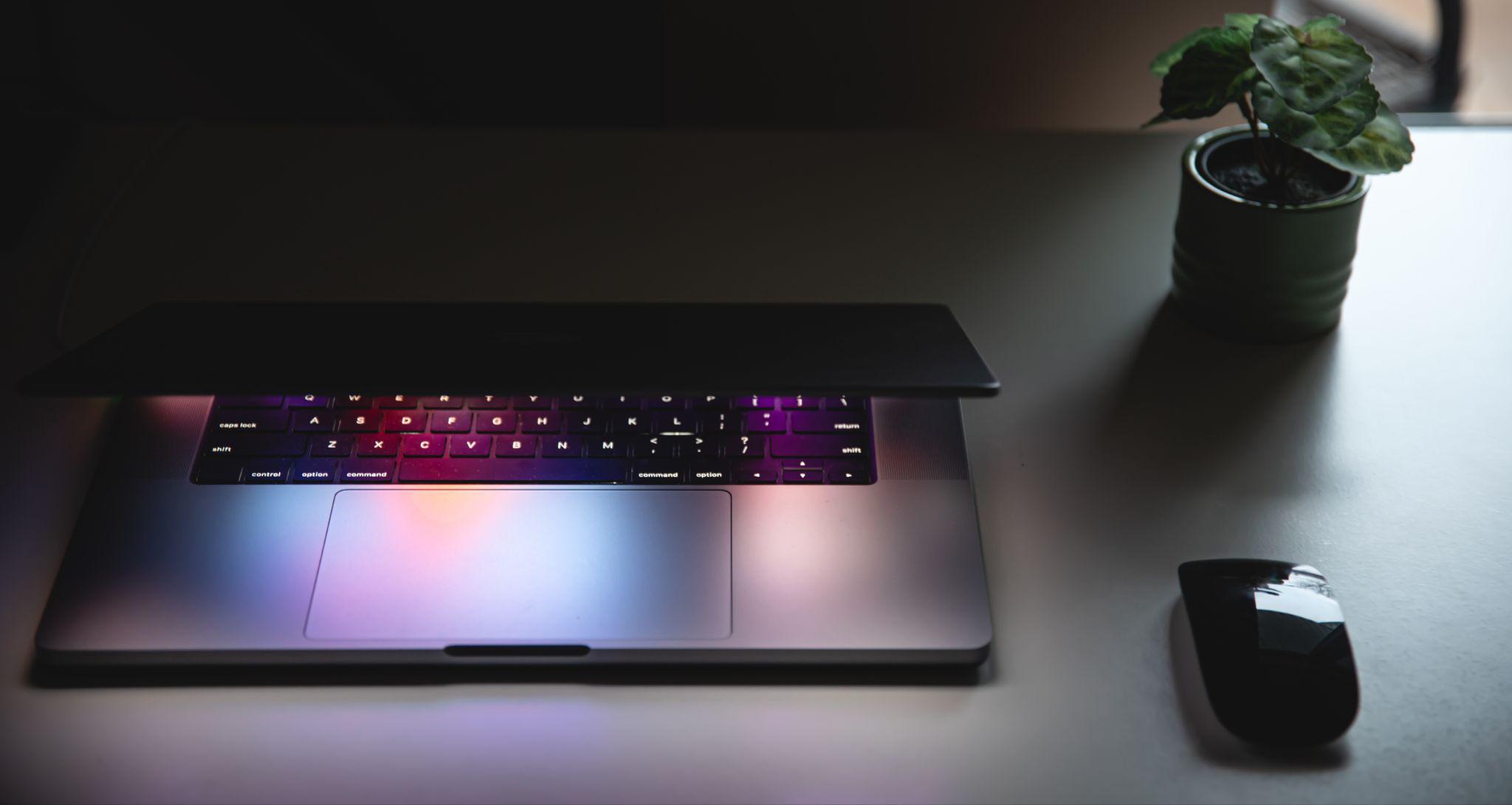
If you are using a MacBook with the lid closed, and the keyboard is unresponsive, open the lid slightly and check whether the keyboard responds. If it does, the magnetic sleep sensor is triggering clamshell mode inconsistently. Clean the area around the hinge with compressed air. A small piece of debris near the lid sensor can cause it to read the lid as closed when it is not.
If you need to use the MacBook in true clamshell mode with an external keyboard, ensure the external keyboard and mouse are connected and active before closing the lid. macOS will not enter clamshell mode if it does not detect external input devices.
Step 5: Reinstall The Hid Driver After The Dock Disconnection
On Windows, with the dock disconnected, open Device Manager > Keyboards, right-click the keyboard device, and uninstall it. Reconnect the dock, then restart the laptop. Windows reinstalls the keyboard driver fresh during the boot process, which resolves driver displacement caused by dock initialization conflicts.
Step 6: Test With A Powered Dock Versus A Bus-Powered Connection
If you are using a bus-powered USB hub rather than a powered dock, the hub may be drawing enough current from the USB bus to cause instability. Switch to a self-powered dock that has its own power adapter. This eliminates power delivery negotiation as a variable.
Brand and Model-Specific Patterns
Dell XPS 13 and XPS 15
Frequently reported with internal keyboard failure when connected to non-Dell docks via Thunderbolt. Dell's Thunderbolt firmware is optimized for Dell docks, and third-party docks occasionally cause USB bus resets. The fix is usually a BIOS update from Dell's support site combined with a Thunderbolt controller firmware update.
HP Spectre x360 and EliteBook
For HP Spectre and EliteBook models experiencing keyboard failure when docked, the HP keyboard not working guide covers firmware and BIOS-level settings specific to HP hardware that may compound docking-related keyboard issues.
Lenovo ThinkPad X1 Carbon and X1 Extreme
Connected to Lenovo ThinkPad USB-C or Thunderbolt docks occasionally produce this symptom after Windows wakes from sleep while docked. The resolution is a ThinkPad firmware update available through Lenovo Vantage, specifically targeting USB controller behavior during connected standby.
MacBook Pro and MacBook Air
Connected to third-party USB-C hubs rather than Apple's own adapters, experience this when the hub's USB power delivery profile is incompatible with the MacBook's expected negotiation. Apple Silicon MacBooks are generally more tolerant of third-party docks than Intel models were, but the issue still appears with lower-quality hubs that do not comply with the USB Power Delivery 3.0 specification.
Related Issues Worth Checking
If the keyboard works when docked but specific keys produce no output, the problem shifts toward a driver conflict rather than a bus reset. That pattern has more in common with keyboard typing wrong characters, and the HID filter driver troubleshooting path applies there.

Users whose keyboard fails when docked and also experience keyboard output producing wrong characters after reconnecting should check whether the dock is connected to a KVM switch or a shared input device that is sending its own HID descriptors to the laptop.
If your docked laptop keyboard produces absolutely no output at all, but an external keyboard works fine when plugged into the dock, the issue may be tied to the internal keyboard driver state rather than the dock itself. Review the laptop keyboard not typing troubleshooting steps to rule out software-level keyboard driver failures that may be triggered specifically by the dock connection.
Rule Out Hardware Before Replacing Anything
If all firmware updates and driver fixes have been applied and the keyboard still fails only when docked, borrow a different dock of the same type and test. If the problem disappears with a different dock, the original dock has a firmware or hardware defect in its USB controller. If the problem persists with any dock, the laptop's Thunderbolt or USB-C controller may have a physical fault that is only exposed under the power load of a connected dock.
If your keyboard failure occurred immediately after a BIOS update on your dock or laptop, the keyboard stopped working after the update troubleshooting guide includes firmware rollback steps and driver recovery procedures specific to update-related keyboard failures.
Verify Input Is Stable After Fixing
After applying the fix, connect the dock, wait two minutes for all USB device initialization to complete, and then run the keyboard test tool with the dock connected and active. Test the keyboard immediately, after two minutes of idle time, and after waking from sleep while docked. Sleep-wake keyboard failure is the most common residual symptom after the initial connection problem is resolved.
Frequently Asked Questions
USB-C and Thunderbolt docking stations can cause power delivery negotiation conflicts, or the system might mistakenly disable internal inputs when in clamshell mode with external monitors.
Update your docking station's firmware, use a powered USB-C dock with adequate wattage, and connect the dock directly to your laptop's primary Thunderbolt port rather than using secondary adapters.
Yes, closing your laptop lid (clamshell mode) tells the operating system to sleep or ignore internal inputs. Open the laptop lid slightly to re-verify if the internal keyboard functions.