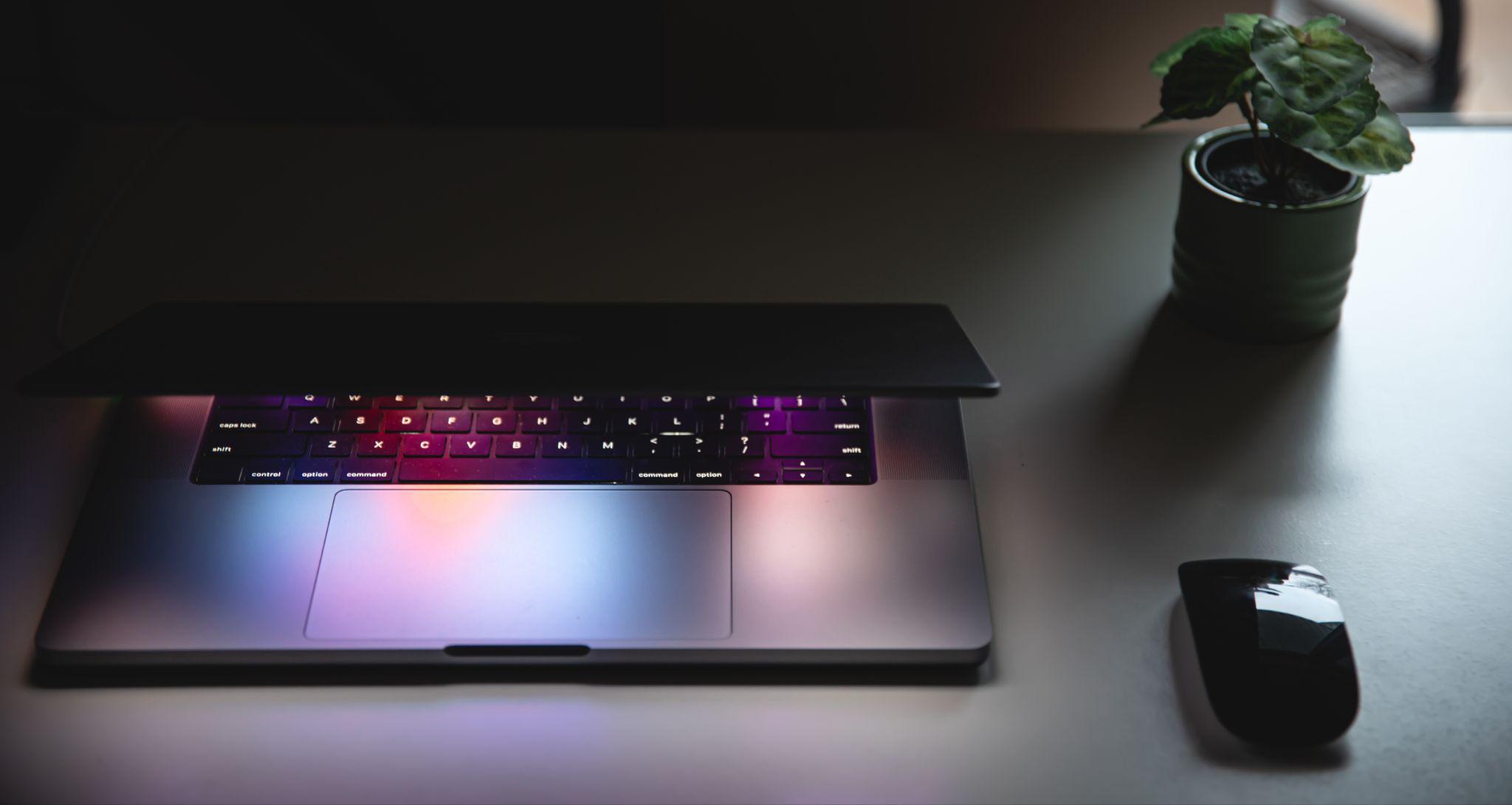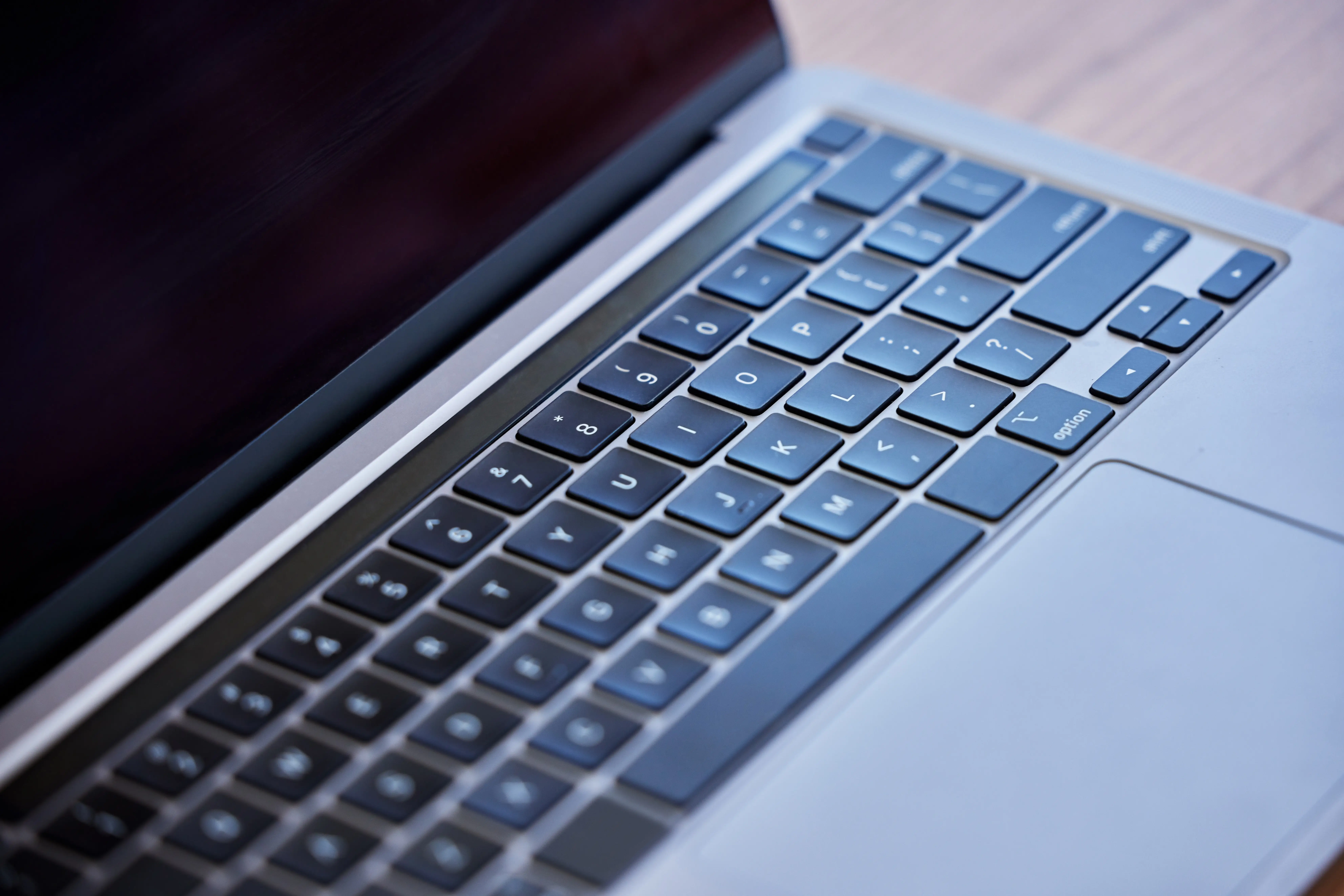
There are 3 primary biometric variations for an unresponsive MacBook Touch ID sensor: capacitive surface blockages, macOS security lockouts, and Secure Enclave communication failures. Isolating the exact biometric architecture prevents misdiagnosing an external Bluetooth frequency error as a built-in sensor hardware fault.
Why has Touch ID stopped working on my Mac?
Touch ID stops working on a Mac due to 3 intentional macOS security lockouts built into the kernel architecture. The operating system suppresses biometric authentication and mandates a manual password input to reauthorize the sensor if the system triggers these security protocols:
- The 48-Hour Timeout: The Secure Enclave disables the fingerprint token if the MacBook remains in a sleep state for 48 consecutive hours.
- The 5-Attempt Restriction: The biometric daemon locks the sensor interface if it registers 5 consecutive unrecognized fingerprint scans.
- The System Reboot: The volatile system memory purges the active biometric session token if the user executes a full system shutdown.
What causes my Touch ID to stop working?
3 physical variables cause a built-in Touch ID sensor to stop working: skin surface contamination, localized hardware component displacement, and maximum token capacity allocation. Hardware technicians isolate environmental variables from mechanical failures before replacing parts.
The following table outlines the 3 physical biometric failure types, defining their primary cause and the resulting operational effect on the Secure Enclave processor.
| Problem (Failure Type) | Why It Happens (Primary Cause) | What It Does (Secure Enclave Effect) |
|---|---|---|
| Capacitive Bridging | Excess sweat or skin moisture | Creates an electrical block that stops the sensor from reading your skin. |
| Surface Diffraction | Micro-scratches on the glass | Scatters the scanning beam so the sensor cannot see your fingerprint patterns. |
| Capacity Lockout | Too many saved fingerprints | The system hits its memory limit and refuses to store any new biometric data. |
The listed data proves that physical blockages prevent successful data packet transmission to the security chip. Cleaning or token deletion must occur before executing deep terminal diagnostics.
Can a wet finger stop Touch ID?
Yes, a wet finger stops Touch ID by causing capacitive bridging. The MacBook fingerprint sensor utilizes a high-resolution capacitive ring to detect microscopic electrical variations between the ridges and valleys of human skin.
Surface moisture or sweat creates a solid electrically conductive layer over the sapphire glass surface. This conductive fluid barrier prevents the sensor from mapping individual ridge depths, resulting in an immediate failed scan error.
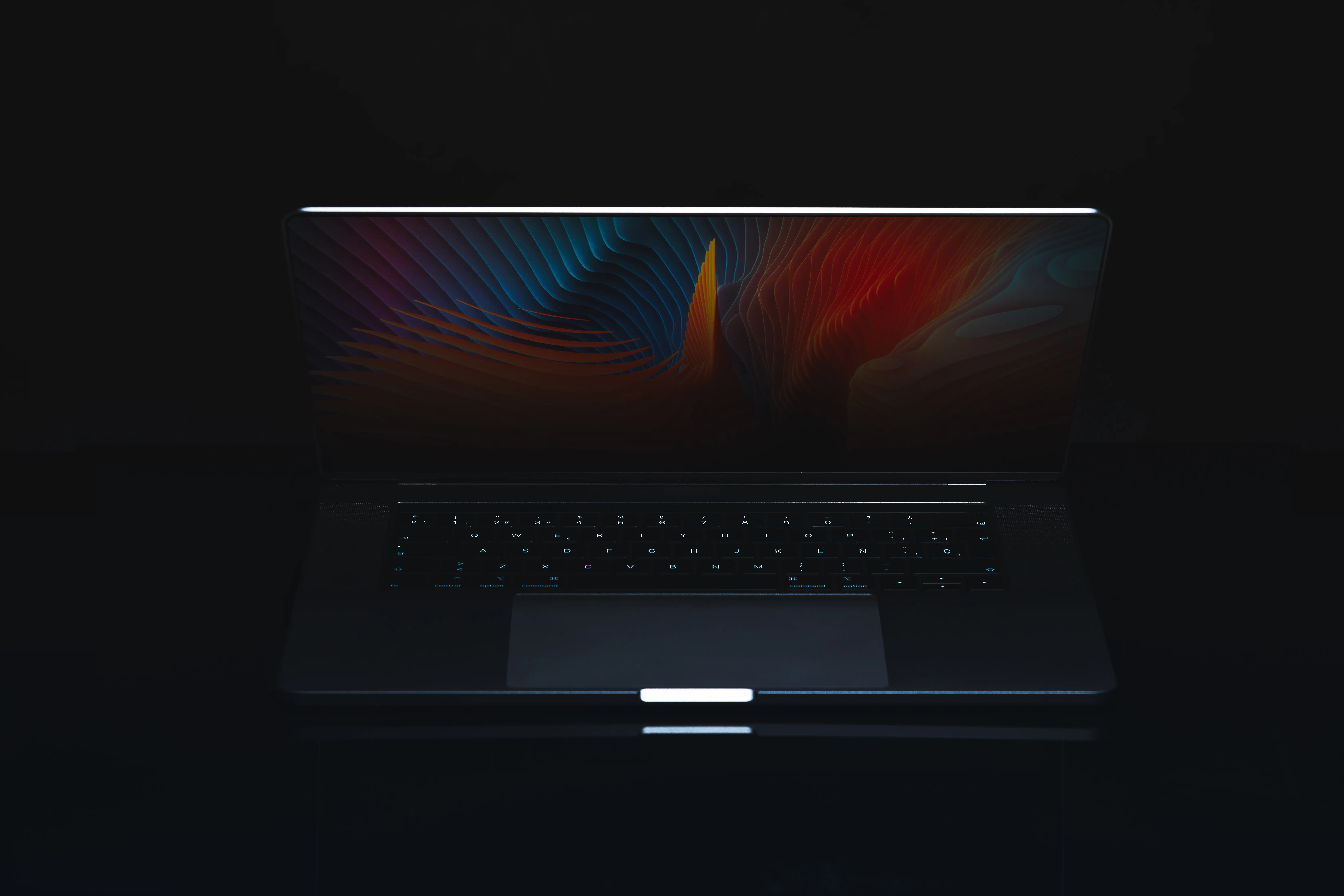
Image Credit: Apple / MacBook Touch ID Diagnostics
What can damage a fingerprint sensor?
There are 2 specific abrasive elements that damage a fingerprint sensor: chemical industrial solvents and wood-pulp paper towels. The Touch ID surface consists of a precision-cut sapphire crystal lens bordered by a capacitive steel ring.
Cleaning the button with unapproved liquids dissolves the perimeter moisture sealant. Wiping the lens with rough paper materials creates micro-scratches that diffract the scanning light, preventing the sensor from reading the underlying sub-epidermal patterns.
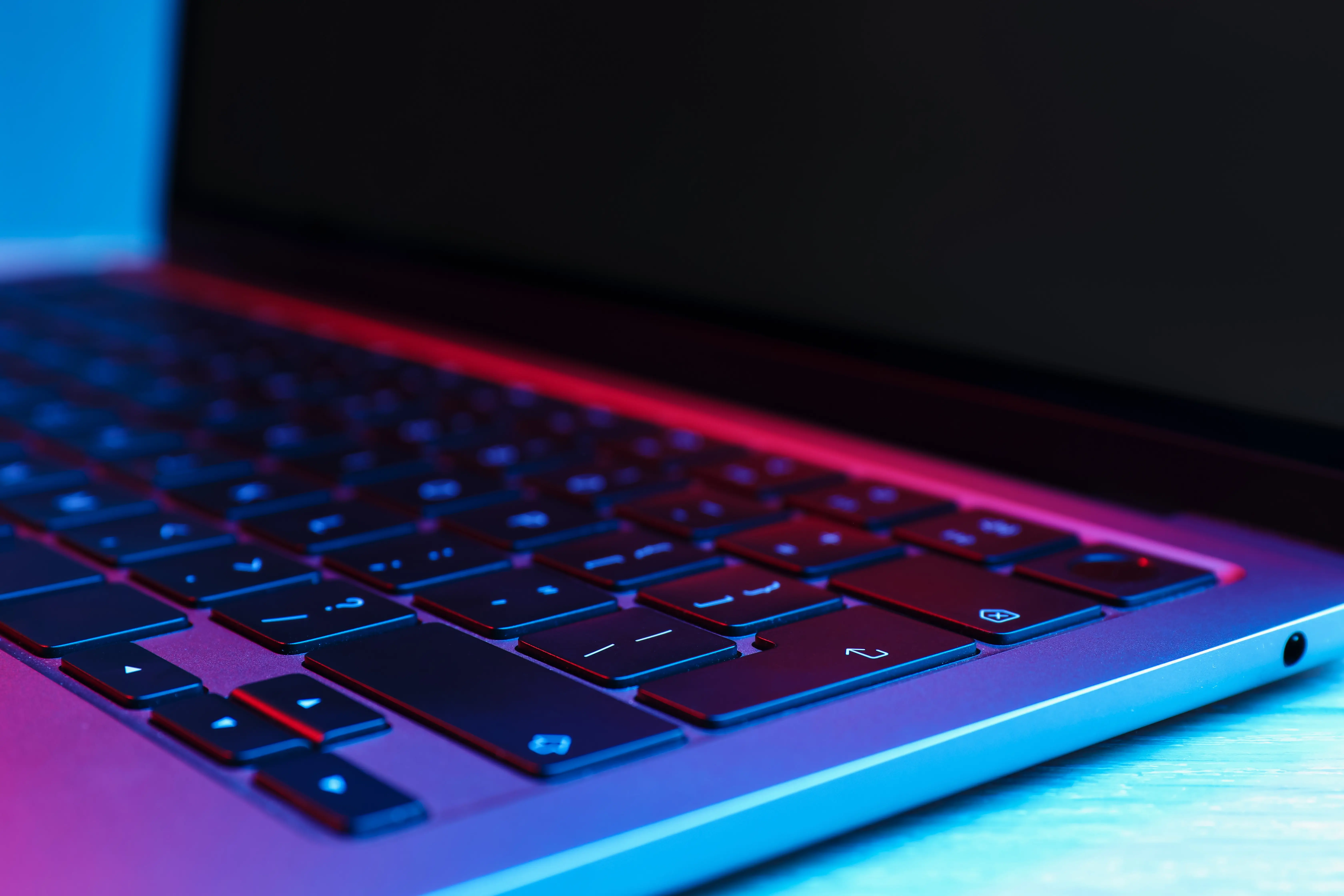
Image Credit: Apple / MacBook Touch ID Diagnostics
How do I fix my MacBook fingerprint sensor?
There are 2 manual maintenance procedures to fix a MacBook fingerprint sensor:
- Wipe the sapphire crystal lens gently using a dry, lint-free microfiber cloth.
- Wash the scanning finger to remove excess oils, drying the skin completely before touching the sensor.
Isolate your hardware stability using an independent interface before completing physical repairs. Verify your primary keystroke inputs using our online keyboard tester tool to confirm your logic board is processing peripheral data commands normally.
How to restore Touch ID?
There is 1 configuration sequence to restore Touch ID recognition accuracy. Navigate to the System Settings menu, select Touch ID & Password, remove all existing fingerprint profiles, and re-enroll the biometric data at a 45-degree angle.
Re-enrolling the finger provides the Secure Enclave with a fresh, updated mapping profile, resolving scanning errors caused by minor weight or skin changes.
How do I reset my Touch ID?
There are 2 system-level commands to reset a malfunctioning Touch ID system module:
- Reset the System Management Controller (SMC) to flush the hardware power states on Intel-based MacBooks.
- Kill the
biometrickitdbackground daemon using the Terminal application to force a software process reload on Apple Silicon MacBooks.
These advanced technical commands clear system memory blockages. The troubleshooting logic for an unresponsive biometric process mirrors the system architecture adjustments required when isolating a built-in MacBook keyboard not working bug.
How do I make my Touch ID work again?
There are 3 distinct connection steps to make an external Magic Keyboard Touch ID work again:
- Verify that your host computer contains an Apple Silicon processor, since external Touch ID handshakes fail on legacy Intel architectures.
- Connect the external keyboard directly to the MacBook using a USB-C to Lightning cable to authorize a new secure token exchange.
- Toggle the macOS Bluetooth radio frequency receiver off and back on to purge corrupted wireless registration caches.
Re-establishing the direct cable connection refreshes the encrypted pairing path directly inside the secure coprocessor. This wireless troubleshooting structure matches the semantic sequence deployed for clearing an unresponsive iPad keyboard connection error.
Image Credit: Apple / MacBook Touch ID Diagnostics
Frequently Asked Questions
The biometrickitd background process fails to re-authenticate the session token with the Secure Enclave during a wake event.
Yes, a fresh account isolates corrupted user-specific preference files from system-wide biometric failures.
Yes, macOS 26.3 contains a regression that prevents the biometric daemon from waking correctly from deep standby.
macOS mandates password entry after a full reboot, 48 hours of inactivity, or 5 consecutive unrecognized fingerprint attempts.
Verify the Mac uses an Apple Silicon processor, then connect the keyboard via USB-C to force a secure token refresh.